Screenshots
App details
- Version
- 1.19.25 | 1.19.21 | 1.7.9 | 1.5.120 | 1....
- Size
- 182.01 MB
- Updated
- March 6, 2025
- Requires
- Windows 11
- Language
- English
- License
- Free
- Developer
- balena
- Category
- Windows OS
SoftPas in:
This product is also available in the following languages:
About balenaEtcher
Download balenaEtcher – Free Bootable USB Creator & Image Flasher
Overview
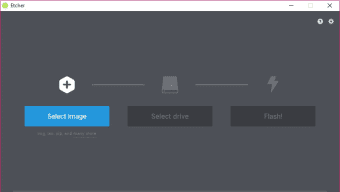
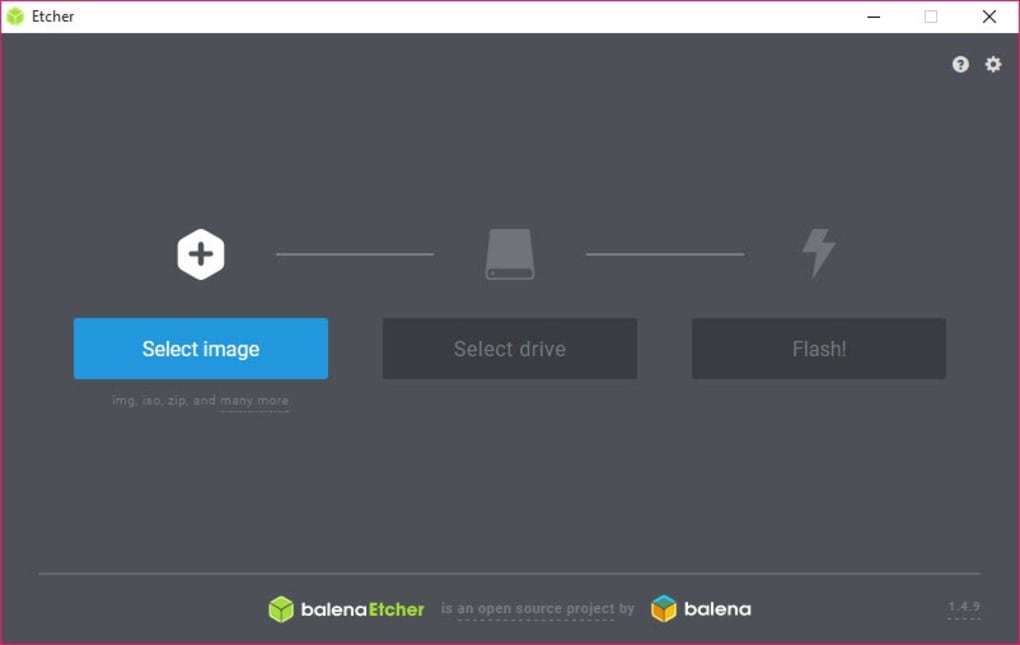
balenaEtcher is a free, open‑source flashing utility that makes turning ISO, IMG or ZIP files into bootable SD cards, USB sticks and other removable drives a one‑tap experience. Developed by the team behind Balena, the tool targets both beginners and seasoned IT professionals who need a reliable way to prepare installation media for operating systems such as Windows 11, Ubuntu, Raspberry Pi OS, and countless Linux distributions. What sets Etcher apart from older utilities like Rufus or the Windows USB/DVD Download Tool is its ultra‑minimalist interface: a single window that walks you through three simple steps—select the image, pick the target drive, and click “Flash.” The program validates the write process, automatically unmounts the drive on success, and offers a built‑in error‑reporting mechanism that helps you troubleshoot corrupted cards before they become a headache. Because it’s built on Electron, Etcher runs on Windows, macOS, and Linux without any additional dependencies, and the source code lives on GitHub under an MIT license, ensuring transparency and community‑driven improvements. Whether you’re creating a live Linux environment for troubleshooting, preparing a Raspberry Pi boot card for a robotics project, or simply need a reliable way to install a fresh OS on a spare laptop, balenaEtcher delivers a secure, ad‑free experience that eliminates the guesswork traditionally associated with flashing tools.
Key Features
- Three‑step flashing workflow (Select image → Choose drive → Flash)
- Supports ISO, IMG and ZIP formats out of the box
- Cross‑platform compatibility: Windows 10/11, macOS 10.13+, Ubuntu, Fedora, and other major Linux distros
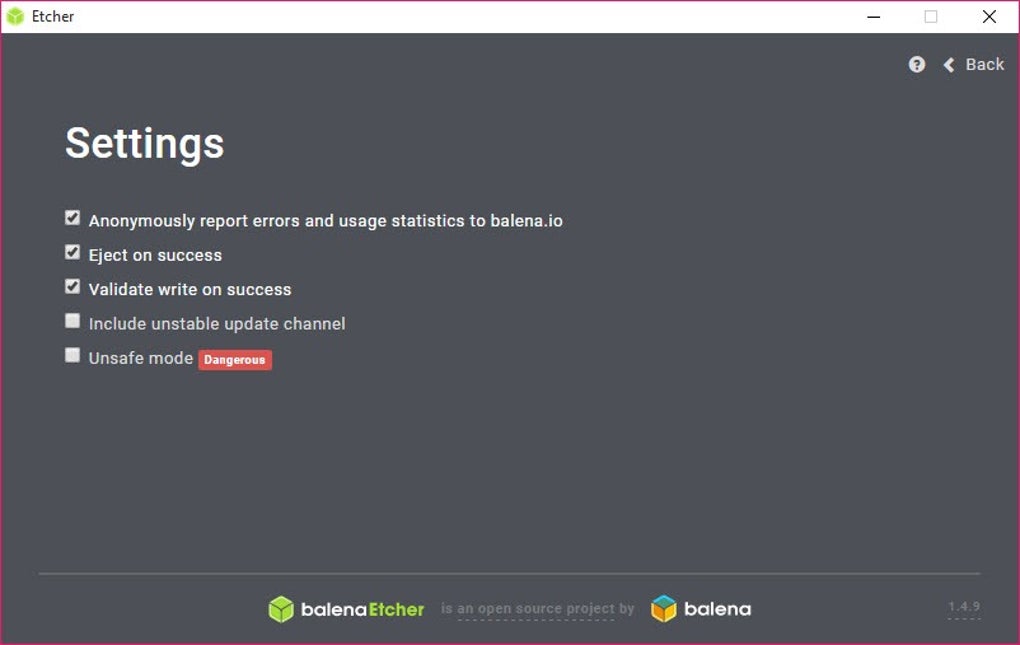
- Validated flashing – detects write errors and prevents corrupted media from being used
- Auto‑unmount on successful write to protect the drive and simplify post‑flash removal
- Built‑in error reporting that can be sent directly to the Balena development team
- Open‑source codebase hosted on GitHub under the permissive MIT license
- Regular automatic updates via in‑app notifications to keep the flashing engine secure
- Dark‑mode UI for reduced eye strain during long flashing sessions
- Portable version available for users who prefer a no‑install, USB‑run option
Installation & Usage Guide
Getting started with balenaEtcher is intentionally straightforward. First, download the installer that matches your operating system from the official balenaEtcher website. Windows users receive an .exe installer, macOS users get a signed .dmg, and Linux users can choose a universal .AppImage or a distribution‑specific package (deb/rpm). Run the installer and follow the on‑screen prompts – the process typically takes less than two minutes.
Once installed, launch Etcher. The main window presents three clearly labeled sections. Click the “Flash from file” button and browse to your ISO, IMG, or ZIP file. Etcher will automatically verify the image’s integrity before proceeding. Next, plug in the target SD card or USB drive. Etcher lists all removable media, and you simply click the appropriate device. If multiple drives are connected, double‑check the capacity shown to avoid overwriting the wrong disk. Finally, press the “Flash!” button. The application immediately starts the write process, displaying a progress bar and estimated time remaining. During flashing, Etcher validates each block of data; if it encounters a bad sector, the process aborts and offers a detailed error report.
After a successful flash, Etcher automatically ejects the drive (or unmounts it on Linux/macOS) and shows a green checkmark. At this point you can either start another flash using the same image on a different drive or click “Done” to close the program. The whole workflow typically completes within 5‑10 minutes for a standard 8 GB USB stick, making it one of the fastest free flashing tools available.
Compatibility, Pros & Cons
balenaEtcher runs natively on the three major desktop platforms:
- Windows 10/11 (64‑bit)
- macOS 10.13 High Sierra and later (Intel & Apple Silicon)
- Linux (Ubuntu, Debian, Fedora, Arch, and others) via AppImage, Snap or native packages
Pros
- Extremely simple, single‑window UI – no confusing dialogs or advanced settings
- Validated flashing reduces the risk of non‑bootable media
- Cross‑platform support eliminates the need for multiple utilities
- Free, open‑source, and ad‑free – no hidden costs or telemetry
- Automatic updates keep the flashing engine secure and compatible with new image formats
- Auto‑unmount protects your drive from accidental removal during write
- Portable AppImage version for on‑the‑go flashing without installation
Cons
- Limited to ISO, IMG and ZIP – does not natively handle other archive types (e.g., .7z)
- No advanced configuration options (e.g., custom partition schemes or bootloader tweaking)
- Does not display a detailed list of all connected drives in a separate view, which can confuse absolute beginners
- Electron‑based UI can feel heavier on low‑end hardware compared to native tools like Rufus
- Requires administrative privileges on Windows/macOS to write to raw devices
Frequently Asked Questions
Can I use balenaEtcher to flash multiple drives at once?
No. Etcher is designed for a single‑drive workflow to minimize the risk of accidentally overwriting the wrong device. You must flash each drive sequentially.
Is balenaEtcher safe for flashing SSDs or external hard drives?
Yes. Etcher works with any removable storage that the operating system exposes as a block device, including SSDs, HDDs, and USB flash drives. It always warns you before erasing data.
Do I need an internet connection to use Etcher after installation?
No. The flashing process is completely offline. An internet connection is only required for checking updates or sending error reports.
Can I flash a custom bootloader or create a multi‑partition USB?
Etcher does not provide advanced partitioning tools. For custom bootloaders or multi‑partition setups, you’ll need a more specialized utility such as Rufus or GParted.
Is there a portable version that I can run from a USB stick?
Yes. The Linux AppImage is fully portable and can be executed without installation. Windows and macOS users can copy the installed folder to a USB drive, but the installer is required for the first run.
Conclusion & Call to Action
In the crowded landscape of OS‑flashing utilities, balenaEtcher distinguishes itself through its razor‑thin UI, validated writes, and cross‑platform availability—all without a price tag or intrusive ads. While power users may miss granular settings, the tool’s reliability and ease of use make it the go‑to choice for anyone who simply needs a bootable USB or SD card in minutes. Whether you’re a developer preparing Raspberry Pi images, a sysadmin deploying Windows on multiple machines, or a hobbyist experimenting with Linux live environments, Etcher provides a secure, fast, and frustration‑free workflow.
Ready to create your next bootable drive? Download balenaEtcher now and experience the simplicity of one‑click flashing. Keep the application updated to benefit from the latest security patches and format support, and enjoy a hassle‑free setup for every operating system you need to install.
Guides & Tutorials
How to install balenaEtcher
- Click the Download button above.
- Once redirected, accept the terms and click Install.
- Wait for the balenaEtcher download to finish on your device.
How to use balenaEtcher
This software is primarily used for its core features described above. Open the app after installation to explore its capabilities.
User Reviews
No reviews yet. Be the first to share your experience.
You may also like
more
Llama 2
Free-to-use large language model As the new addition to Meta’s arsenal of langua...

NotebookLM
Revolutionizing the note-taking and idea-generation process NotebookLM is an exp...

Github co pilot
AI-inspired software development and coding platform GitHub Copilot is a browser...

Google Gemma
Google’s lightweight AI models Introducing Google Gemma , a family of cutting-ed...

AI Image Enlarger
A free app for Windows, by ai-image-larger. AI Image Enlarger is a free software...

DALL E
AI-driven text-to-image transformation engine DALL·E is a free graphic and desig...